Dashboard
Upon successfully signing in, you will be directed to the Tapestry Complete Portal Dashboard tab. From the dashboard, users can personalize their main screen by choosing which widgets to display, configuring notification settings, and accessing patient information as well as risk management tools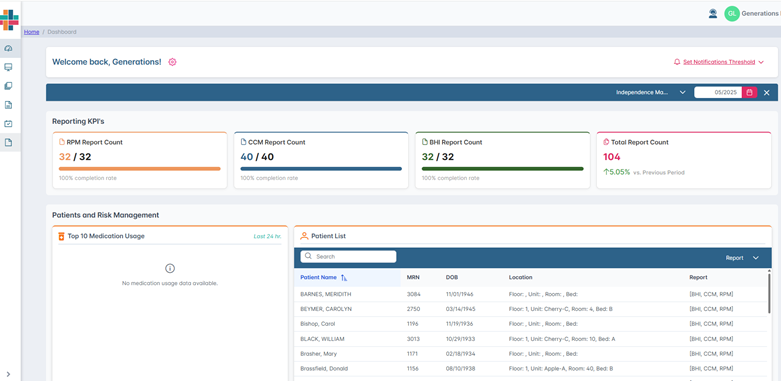
Dashboard
Widget Configurations

Navigate to the gear icon on your dashboard. It is located to right of the Welcome message.
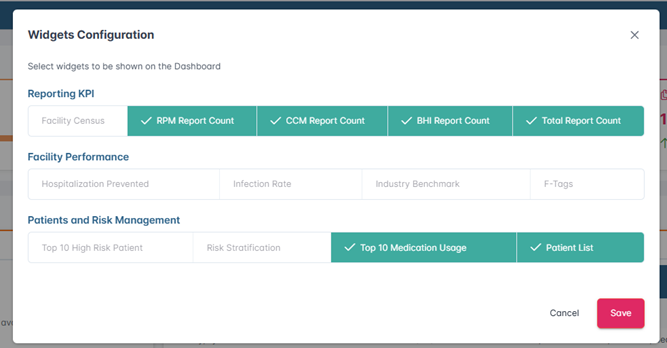
From here, you can select the widgets you want to display on your main screen.
Reporting KPI -Facility Census, RPM Report Count, CCM Report Count, PHI Report Count, or Total Report Count.
Facility Performance - Hospitalization, Prevented Infection Rate, Industry Benchmark, or FTAGs.
Patients and Risk Management -Top 10 High Risk Patient, Risk Stratification, Top 10 Medications Usage, or Patient List.
If a selection is grayed out or unavailable, it indicates a feature that will be available soon
Set Notification Threshold
From your dashboard under Notification Threshold, you can check the box labeled “Notify me when available reports for review month reach” and adjust the slider between 50% and 100%.
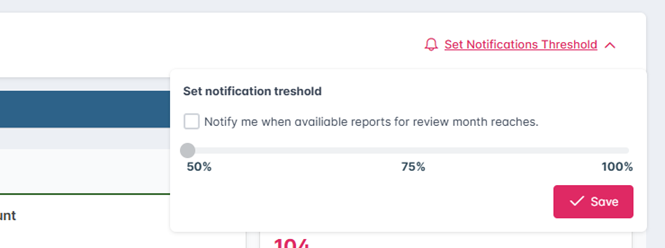
Check the notify me box and then hit save to save your preferences. You will receive an email once your facility has met your chosen threshold of reports available.
Patients and Risk Management
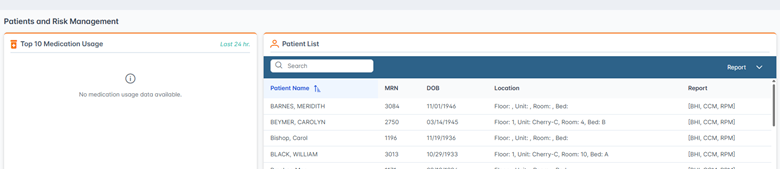
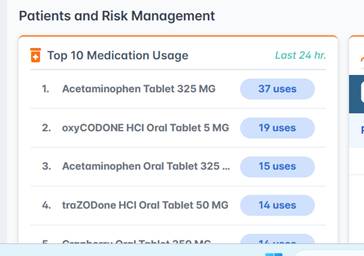
In Risk Management, users can view the top 10 medications used within the facility in the last 24hrs. This widget will refresh every 24 hours to show daily Top 10 medication usage within the facility
Patient List
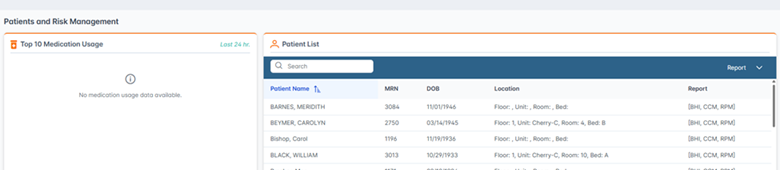
The Patient List section allows you to easily view patient information within the facility.
Go to Patient List to view all patients in the facility, including their name, MRN, DOB, location, and reports.
Use the report filter in the navigation bar to search by patient name or to select the type of reports that each patient has available: CCM, BHI, or RPM. Use the carat to the right of "Report" in the blue navigation bar to view reports available for each patient
Was this article helpful?
That’s Great!
Thank you for your feedback
Sorry! We couldn't be helpful
Thank you for your feedback
Feedback sent
We appreciate your effort and will try to fix the article