RPM REVIEWS: RPM MONTHLY SUMMARY REPORT
Definitions
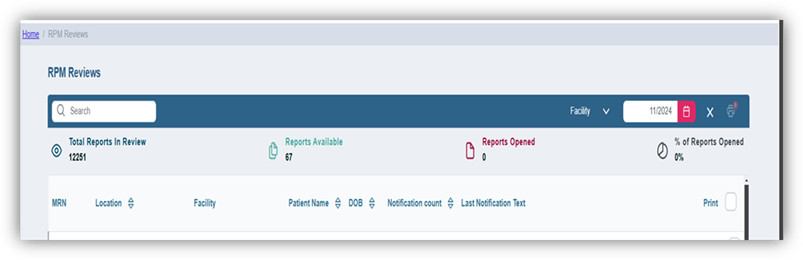
Total Reports in Review- Total number of reports in queue to be reviewed
Reports Available- Total number of reports reviewed and ready for facility to access
Reports Opened- Displays percentage of total facility reports opened by facility.
Notification Count- Displays total number of passive notifications patient received in month of review.
Last Notification Text- Displays the text of the last passive notification the patient encountered during review month.
- Select facility by clicking on Facility in blue navigation bar.
- Select month to review by clicking on calendar icon. Select month of review.
- Queue will populate with a list of facility patients.
- Select patient report to view by checking the box on the far right. Users can check boxes individually or use the Print All option in the header bar to bulk view and print. Once patient report(s) are selected then click on printer icon in top right-hand portion of the screen.
- A print preview of the report will open. Review the monthly summary report. User can then close out preview by clicking on “X” or choose to print the report by clicking on the blueprint icon to the left of the “X”
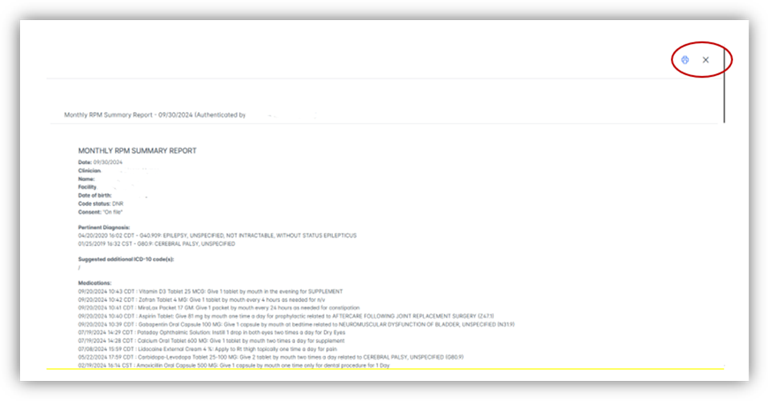
RPM Monthly Summary Report
Home Screen
Was this article helpful?
That’s Great!
Thank you for your feedback
Sorry! We couldn't be helpful
Thank you for your feedback
Feedback sent
We appreciate your effort and will try to fix the article