BHI REVIEW: MONTHLY REPORTS
Definitions
Total Reports in Review- Total number of reports in queue to be reviewed
Reports Available- Total number of reports reviewed and ready for facility to access
Reports Opened- Displays percentage of total facility reports opened by facility.
Goal- Highlights patient’s care plan goals set by facility and standards of care
Outcome- Data that is derived directly from EHR and documents how patient is progressing/ declining from patient care plan goal
Treatment Plan Suggestions- Tapestry Clinical Review team suggestions on how patient can progress toward care plan goals
Treatment Plan Notes- Any information that the care plan team is adding regarding the treatment plan suggestions
Clinical Notes- Displays clinical notes input by Tapestry Clinical Review team
- Select facility by clicking on Facility in blue navigation bar.
- Select month to review by clicking on calendar icon. Select month of review.
- Queue will populate with a list of facility patients.
- Select patient report to view by clicking on the patient bar. To print report, check box inside patient bar. Users can check boxes individually or use the Print All option in the header bar. Once patient report(s) are selected then click on printer icon in top right-hand portion of the screen.

5. User can search by patient name or MRN number by entering data into search bar.
6. Once queue is populated with patient data, click anywhere inside of patient card to access the patient care plan. The number under goals unmet indicates how many patient care goals have not been met within the patient care plan.
7. Patient care plan will review patient demographics on the left side and care plan on the right side. The date of report is listed as date of service in top right hand side of report.
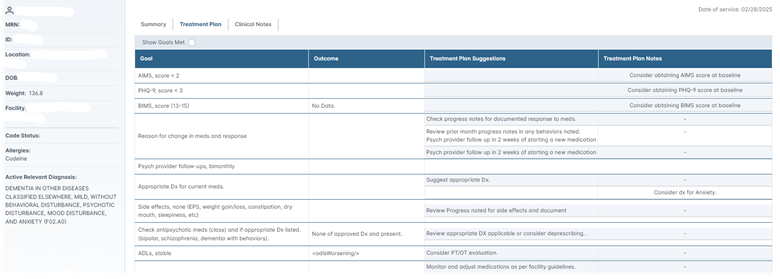
8. If user would like to view all care plan goals, place a checkmark in Show Goals Met. Care plan goals that have been met will be highlighted in green on the report.
9. To print report, check box inside patient bar on review page . Users can check boxes individually or use the Print All option in the header bar. Once patient report(s) are selected then click on printer icon in top right-hand portion of the page.
10. A print preview of the report will pop up. Select the printer icon in upper right hand corner of the report or click on X to close preview and go back to review screen.
Was this article helpful?
That’s Great!
Thank you for your feedback
Sorry! We couldn't be helpful
Thank you for your feedback
Feedback sent
We appreciate your effort and will try to fix the article