
Tapestry Complete Portal:
User Guide
This user guide is the property of TapestryHealth and may not be distributed or reproduced without permission. Any unauthorized reproduction or distribution is strictly prohibited.
: MONTHLY CHRONIC CARE MANAGEMENT REPORTS...................................................... 9
RPM REVIEWS: RPM MONTHLY SUMMARY REPORT....................................................... 14
PURPOSE
This user guide is a comprehensive resource for users to navigate and utilize Tapestry Complete Portal effectively. It provides clear step-by-step instructions to maximize the user’s navigation of the Portal.
User Role Definitions
Corp User- The corporate user will allow access and viewing of all facility reports, dashboards, reviews within the corporation [Example: CNO will be able to view all facility reports within the assigned corporation]
Facility Admin- Facility admin will only be able to see the facility of which they are assigned. Facility admin will also have permission to add/delete/edit facility users to facility dashboard. [Example: DON is facility admin and will be able setup access for ADON, unit managers, MDS etc.]
Facility User – access/view/print reports within assigned facility. No user management capability.
ACCESS: LOG IN
To log in to Tapestry Complete Portal: powered by Tapestry Health, follow the steps below:
- Navigate to https://portal.hub.tapestryhealthhq.com/
- Enter your provided username/email and password.
- Click on the “Sign In” button.
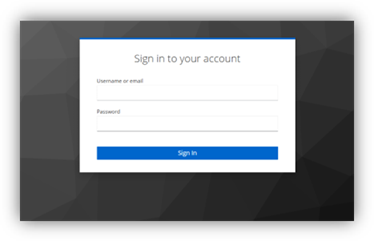
Login
Dashboard
Upon successfully signing in, you will be directed to the Tapestry Complete Portal Dashboard tab. From the dashboard, users can personalize their main screen by choosing which widgets to display, configuring notification settings, and accessing patient information as well as risk management tools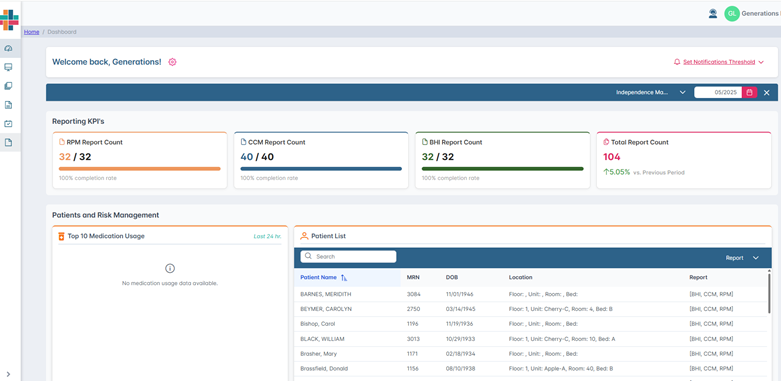
Dashboard
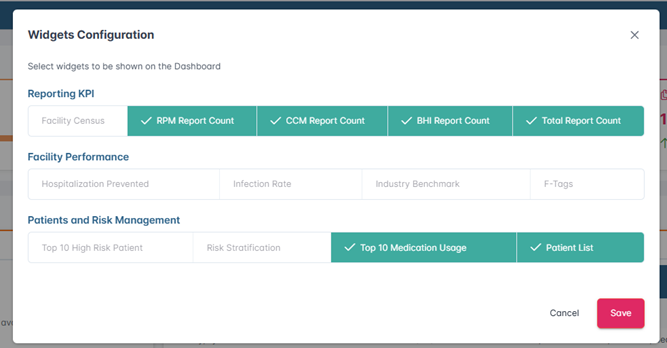
Widget Configurations

Navigate to the gear icon on your dashboard. It is located to right of the Welcome message.
From here, you can select the widgets you want to display on your main screen.
Reporting KPI -Facility Census, RPM Report Count, CCM Report Count, PHI Report Count, or Total Report Count.
Facility Performance - Hospitalization, Prevented Infection Rate, Industry Benchmark, or FTAGs.
Patients and Risk Management -Top 10 High Risk Patient, Risk Stratification, Top 10 Medications Usage, or Patient List.
If a selection is grayed out or unavailable, it indicates a feature that will be available soon
Set Notification Threshold
From your dashboard under Notification Threshold, you can check the box labeled “Notify me when available reports for review month reach” and adjust the slider between 50% and 100%.
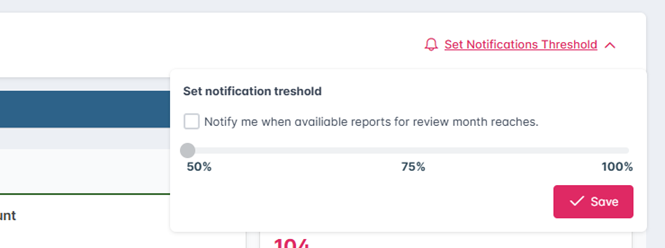
Check the notify me box and then hit save to save your preferences. You will receive an email once your facility has met your chosen threshold of reports available.
Patients and Risk Management
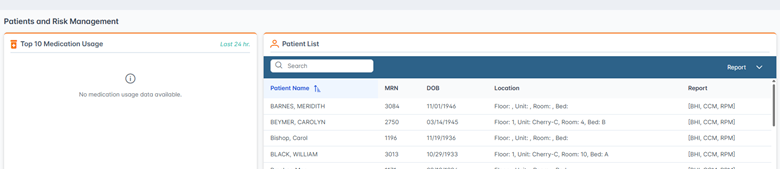
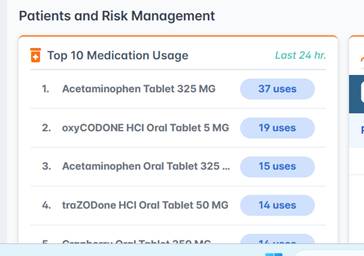
In Risk Management, users can view the top 10 medications used within the facility in the last 24hrs. This widget will refresh every 24 hours to show daily Top 10 medication usage within the facility
Patient List
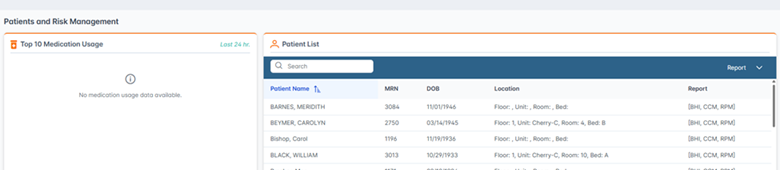
The Patient List section allows you to easily view patient information within the facility.
Go to Patient List to view all patients in the facility, including their name, MRN, DOB, location, and reports.
Use the report filter in the navigation bar to search by patient name or to select the type of reports that each patient has available: CCM, BHI, or RPM. Use the carat to the right of "Report" in the blue navigation bar to view reports available for each patient
LANDING PAGE
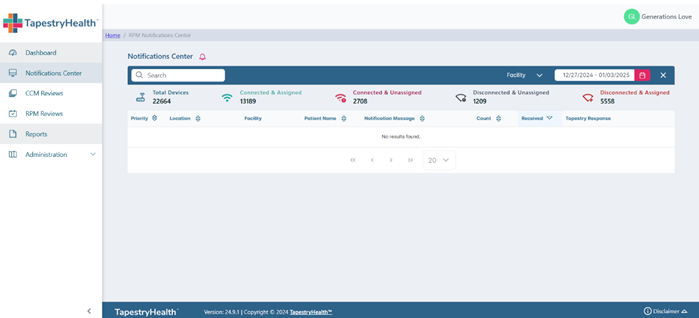
The landing page displays content that is dependent on the role and permissions. Users can navigate through the Portal by hovering over the left bar on the screen and choosing the appropriate tab to view content by clicking on the name.
The user can freeze the left pane from hover by clicking the carat at the bottom left-hand corner of the screen.
Definitions
Notifications Center- [RPM Services Only] where daily passive vital notifications are held, including current notification escalations made by the clinical notification review team.
RPM Reviews- [RPM Services Only] Contains passive notification monthly care plan summation reports for passive and/or active vital notifications. If facility has DS Smart Vital Sign Management, monthly data reports will populate here
BHI Reviews- Contains monthly BHI Care Plan reports
CCM Reviews- Contains Monthly Chronic Care Management Care Plan reports
Administration-[Only available to Facility Admin] allows certain users to perform user management functions. Corp User will be able to edit and delete facilities in User Management
User Management- Add/Delete/ Edit users to the portal dashboard
NOTIFICATION CENTER: DAILY PASSIVE VITAL REPORT
Definitions
Total Devices- Number of devices installed at a facility
Connected & Assigned- Number of patients assigned to the devices
Connected & Unassigned- Number of devices connected but not assigned to patients
Disconnected & Unassigned- Number of devices disconnected and not assigned to patients
Disconnected & Assigned- Number of devices disconnected and have patients assigned
Search: The user can search/filter the queue by patient name
Escalated Only: Check this box to see only those passive vital notifications that were escalated to the facility during specified date range
Facility: User capability of filtering by corporation, facility, unit, floor
Calendar: Filters queue by day and month. Users can filter by 8-day increments
Clear all filters: Click on “X” next to the calendar icon to clear all current filters
Priority: Passive vital notifications are prioritized by acuity- High, Medium, and Low
Notification Message: Text description of passive vital notification received
Count: Displays the total number of passive vital notifications received for each patient within the specified date range
Received: Displays date and time of last notification received within the specified date range
Tapestry Response: In this column, users can see the outcomes of passive vital notifications reviewed by Tapestry Clinical Review team
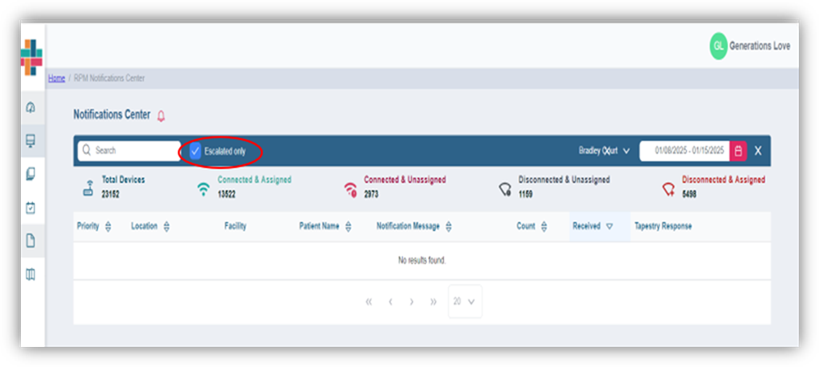
DAILY PASSIVE VITAL NOTIFICATION QUEUE
- Begin by filtering queue to facility by clicking on carat to right of facility text
- Select Escalate Only to view only the passive vital notifications that have been escalated to facility
- Choose a date range by clicking on calendar icon and selecting date range. Max is 8 days per range.
- Queue will populate with patients according to filters set in navigation bar
- The queue can be sorted by ascending/descending order by selecting triangles next to each header.
- User can prioritize the queue by priority of notification or search by patient name

Priority: Passive vital notifications are listed by priority- High, Medium, and Low
Notification Message: Text description of the highest priority notification received within the selected date range
Count: Displays the total number of passive vital notifications received for each patient within the specified date range
Received: Displays date and time of last notification received within the specified date range
Tapestry Response: In this column, users can view passive notification escalations created by Tapestry Clinical Review team. It will indicate if facility was notified by email/text and name of person at facility contacted
: MONTHLY CHRONIC CARE MANAGEMENT REPORTS
Definitions
Total Reports in Review- Total number of reports in queue for review
Reports Available- Total number of reports reviewed and ready for facility to access
Reports Opened- Displays percentage of total reports that have been opened by facility.
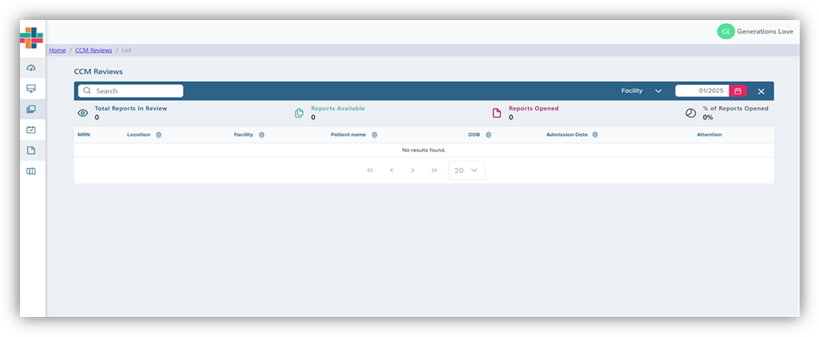
Monthly Chronic Care Management Report Queue
- Navigate to CCM Review page by hovering over left navigation bar of screen.
- Click on CCM Reviews Tab
- Select facility filter in blue navigation bar. User can search facility, unit, floor. Corporation will automatically populate below search bar. Click the carat to the left of Corporation name to open facility thread. User can focus down to unit or floor by opening carat to left of unit and floor.
- Choose the month the user would like to review by clicking on calendar icon in blue navigation bar and selecting the appropriate month.
- The queue will populate with patient demographics. Users can search by patient name or MRN number. Users can also sort results in ascending or descending order by clicking on triangles next to header names.

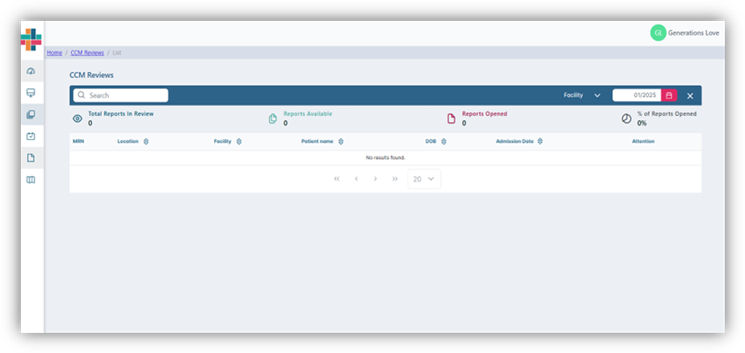
CCM Reviews: Sorting patient queue
- User can search by patient name or MRN number by entering data into search bar.
- Once queue is populated with patient data, click anywhere inside of patient card to access the patient care plan. The number under goals unmet indicates how many patient care goals have not been met within the patient care plan.
- To print the report, click on the square at end of patient bar to select. The Print icon in far right side of blue navigation bar will turn on. Select the print icon to view the report print preview. Select the print icon to the left of the X in the top right hand corner of print preview
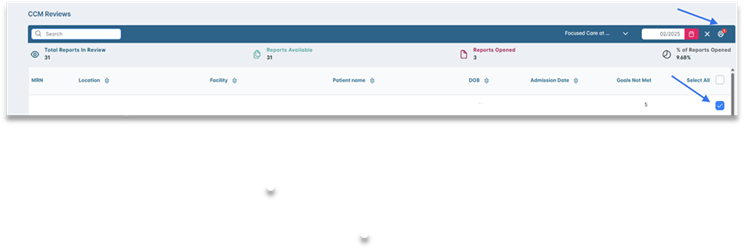
- Patient care plan will review patient demographics on the left side and care plan on the right side. The date of report is listed as date of service in top right hand side of report.
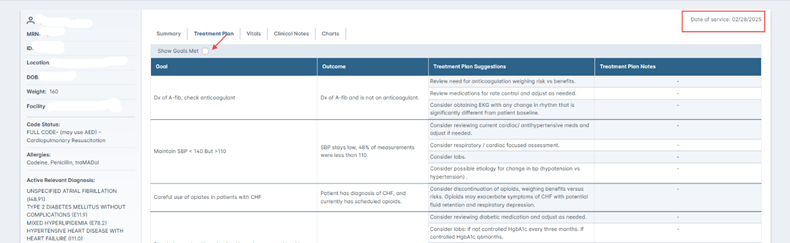
- If user would like to view all care plan goals, place a checkmark in Show Goals Met. Care plan goals that have been met will be highlighted in green on the report.
Ex: Goals Met
- User can navigate through the report by clicking on the tabs in the top middle of the screen. The tabs are: Summary, Treatment Plan (default), Vitals, Clinical Notes, and Charts
Summary Tab- Summarizes the care plan goals in an easy-to-read format. Allows for quick analysis of patient care plan and how patient is progressing toward goals
Treatment Plan: Users can view care plan goals and status (Goals Met/Goals Not Met)
- Goals: Describes patient care plan goals
- Outcome: States patient progress toward the care plan goals
- Treatment Plan Suggestions: Lists clinical suggestions to patient plan of care
- Treatment Plan Notes: Additional notes made by clinical review team. Not all patient care plans will have additional notes
Vitals Tab- Reviews patient vital sign data for the review month
Clinical Notes- Displays clinical notes input by Tapestry Clinical Review team
Charts- Vital sign data is presented in graph format for quick analysis
BHI REVIEW: MONTHLY REPORTS
Definitions
Total Reports in Review- Total number of reports in queue to be reviewed
Reports Available- Total number of reports reviewed and ready for facility to access
Reports Opened- Displays percentage of total facility reports opened by facility.
Goal- Highlights patient’s care plan goals set by facility and standards of care
Outcome- Data that is derived directly from EHR and documents how patient is progressing/ declining from patient care plan goal
Treatment Plan Suggestions- Tapestry Clinical Review team suggestions on how patient can progress toward care plan goals
Treatment Plan Notes- Any information that the care plan team is adding regarding the treatment plan suggestions
Clinical Notes- Displays clinical notes input by Tapestry Clinical Review team
- Select facility by clicking on Facility in blue navigation bar.
- Select month to review by clicking on calendar icon. Select month of review.
- Queue will populate with a list of facility patients.
- Select patient report to view by clicking on the patient bar. To print report, check box inside patient bar. Users can check boxes individually or use the Print All option in the header bar. Once patient report(s) are selected then click on printer icon in top right-hand portion of the screen.

- User can search by patient name or MRN number by entering data into search bar.
- Once queue is populated with patient data, click anywhere inside of patient card to access the patient care plan. The number under goals unmet indicates how many patient care goals have not been met within the patient care plan.
- Patient care plan will review patient demographics on the left side and care plan on the right side. The date of report is listed as date of service in top right hand side of report.
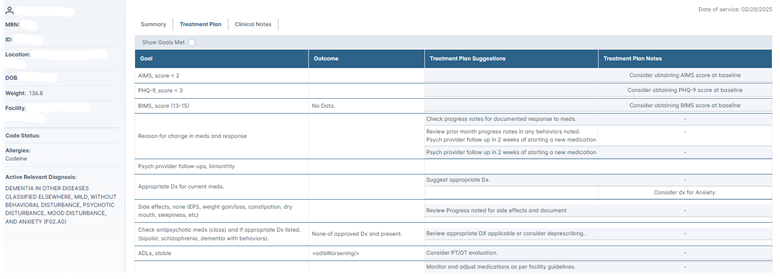
- If user would like to view all care plan goals, place a checkmark in Show Goals Met. Care plan goals that have been met will be highlighted in green on the report.
- To print report, check box inside patient bar on review page . Users can check boxes individually or use the Print All option in the header bar. Once patient report(s) are selected then click on printer icon in top right-hand portion of the page.
- A print preview of the report will pop up. Select the printer icon in upper right hand corner of the report or click on X to close preview and go back to review screen.
RPM REVIEWS: RPM MONTHLY SUMMARY REPORT
Definitions
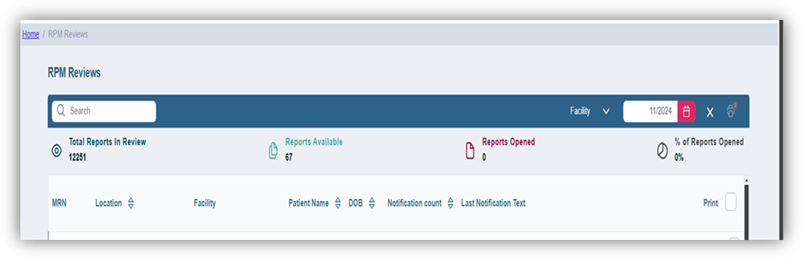
Total Reports in Review- Total number of reports in queue to be reviewed
Reports Available- Total number of reports reviewed and ready for facility to access
Reports Opened- Displays percentage of total facility reports opened by facility.
Notification Count- Displays total number of passive notifications the patient received in month of review.
Last Notification Text- Displays the text of the last passive notification the patient encountered during review month.
- Select facility by clicking on Facility in the blue navigation bar.
- Select month to review by clicking on calendar icon. Select month of review.
- A queue will populate with a list of facility patients.
- Select patient report to view by checking the box on the far right. Users can check boxes individually or use the Print All option in the header bar. Once patient report(s) are selected then click on printer icon in top right-hand portion of the screen.
- A print preview of the report will open. Review the monthly summary report. User can then close out preview by clicking on “X” or choose to print the report by clicking on the blueprint icon to the left of the “X”
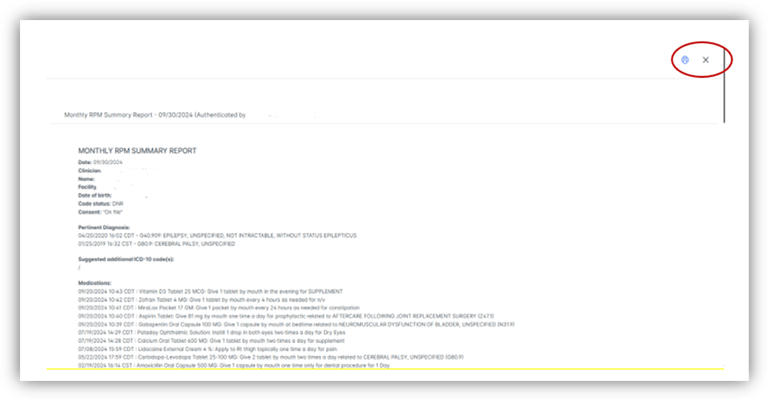
RPM Monthly Summary Report
- User can return to the landing page by clicking on Home in the top left corner of the page.
Home Screen
SUPPORT
The Support Section is in the top right corner next to the login name
Click on 
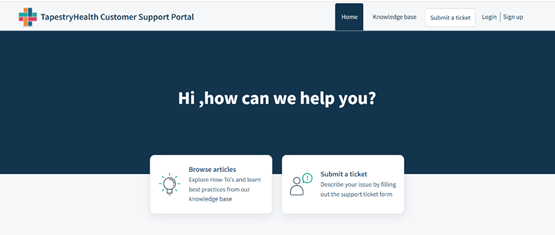
Portal Support: Navigates the user to the landing page where user guides, navigation videos, customer support IT tickets, and FAQs can be accessed
Portal Support
Select browse help articles to access user guides for each service line
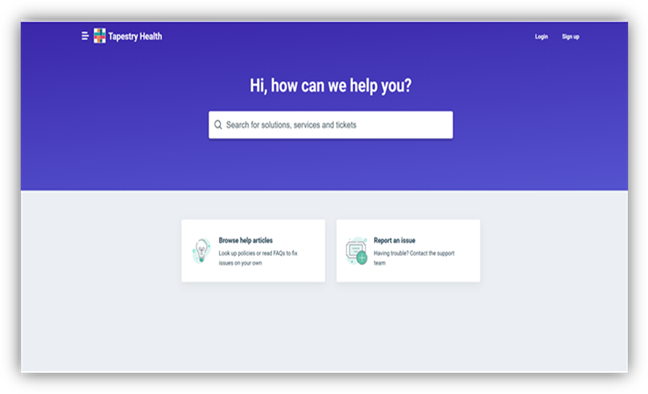
Browse help articles to get access to user guides, instructional videos, new features, systems enhancements, and FAQs
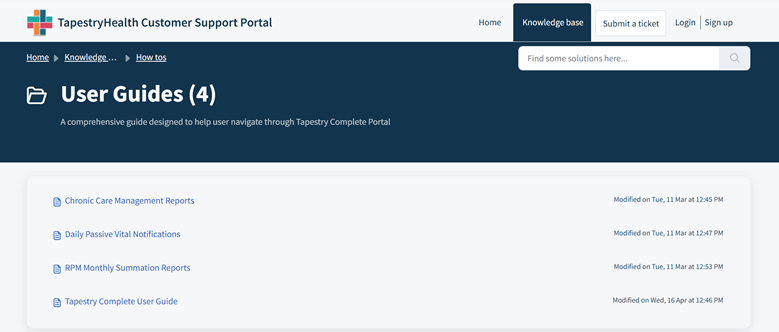
SUBMITTING IT TICKET
Select Report an Issue to submit IT ticket. Fill in form and submit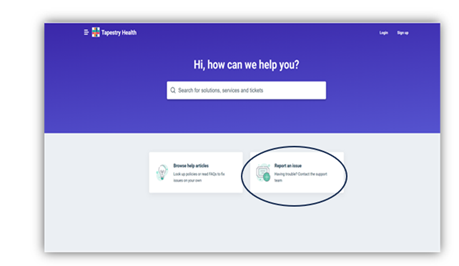
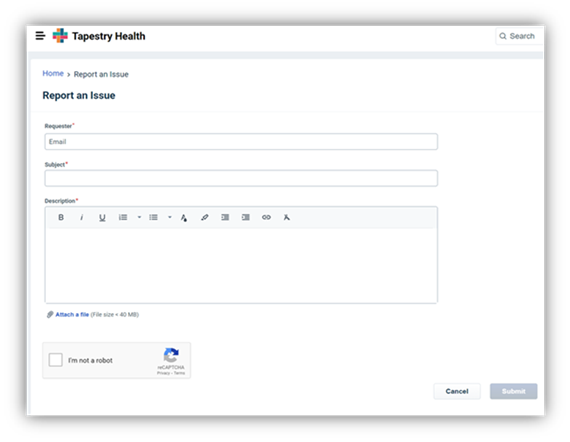
IT Ticket Submission Form
User can also search by help topic or ticket number using the search bar
Was this article helpful?
That’s Great!
Thank you for your feedback
Sorry! We couldn't be helpful
Thank you for your feedback
Feedback sent
We appreciate your effort and will try to fix the article